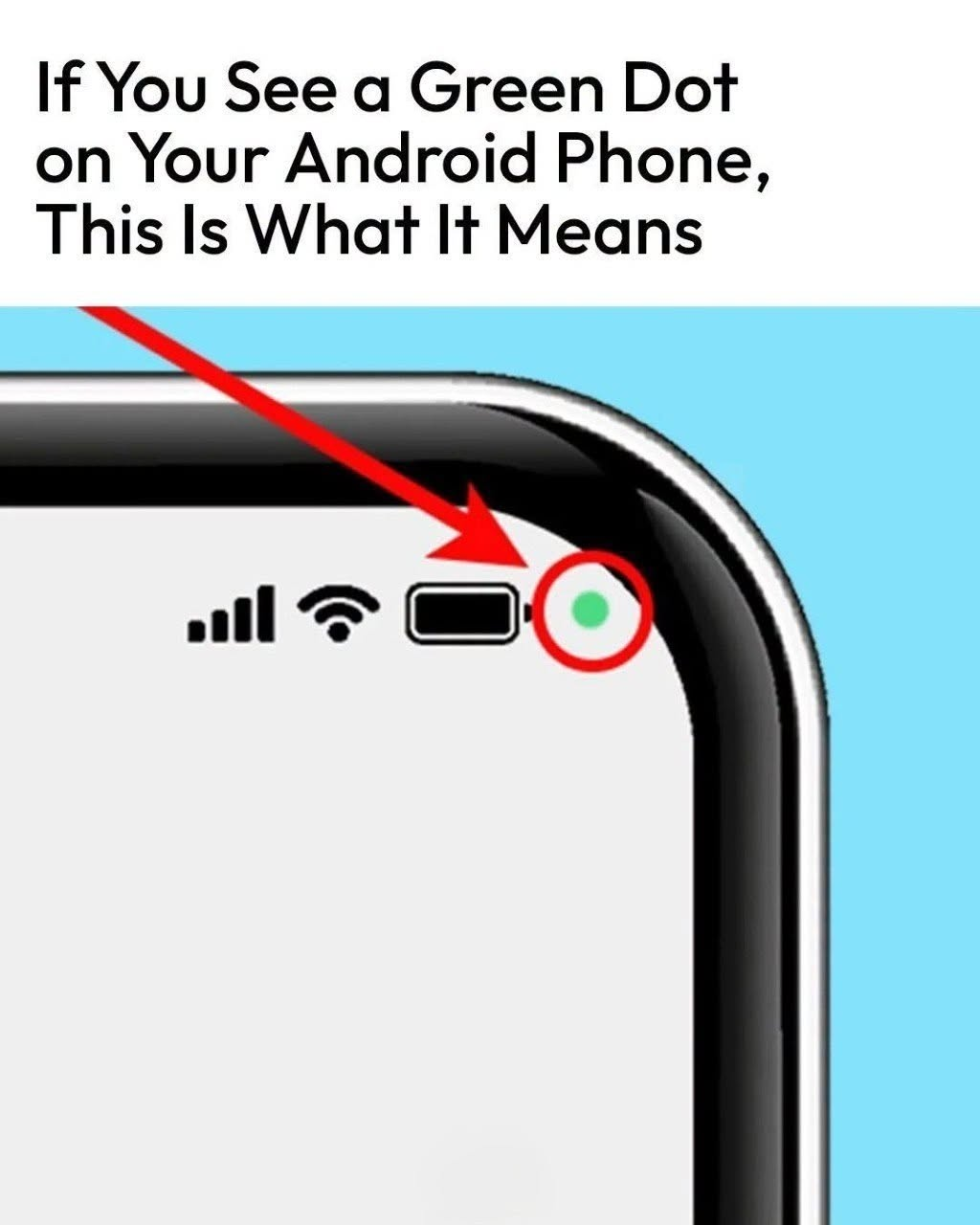
Decoding the Green Dot: A Privacy Feature, Not a Threat
The green dot is a privacy indicator introduced by Google in Android 12. Its primary purpose is to provide real-time transparency regarding the use of your device’s most sensitive sensors: the camera and the microphone. When the dot appears, it is a direct confirmation that at least one application is actively using one of these hardware components. It is not a sign that your phone is hacked, nor is it a virus; it is a functional alert system that puts you in control.
It is important to distinguish the Android indicator from similar features on other platforms. On Apple’s iOS, a green dot specifically indicates camera usage, while an orange dot indicates microphone usage. On Android, the system uses a single green dot to signify that either the camera or the microphone (or both) is active. This subtle difference means that Android users must rely on the accompanying notification panel to determine exactly which hardware is engaged. The dot is designed to be unobtrusive but noticeable enough to catch your eye, serving as a constant reminder that your digital environment is active and watching or listening.
Identifying the Culprit: How to See Which App Is Using Your Camera
When you spot the green dot, your first instinct should be to identify the application responsible. The process is straightforward and designed for quick user action. Start by swiping down from the top of your screen to open the notification shade or Quick Settings panel. Look for the green dot, which will often expand into a small camera or microphone icon alongside the clock and battery indicators. Tap directly on this icon.
Tapping the indicator opens a small pop-up window or a bottom sheet that lists the name of the application currently accessing the hardware. For example, if you just used a QR code scanner, the app’s name will appear. If the dot appeared unexpectedly while you were browsing the web, the pop-up might reveal that a background app or a browser tab is using the camera. This immediate feedback loop is crucial for security. If you see an app listed that you are not actively using or do not recognize, it serves as an immediate red flag, prompting you to investigate further and revoke permissions if necessary.
The Privacy Dashboard: Auditing Past App Activity
While the live indicator tells you what is happening now, the Privacy Dashboard allows you to see what has happened in the past. This feature, also introduced in Android 12, is a centralized hub for managing your privacy. You can access it by going to Settings > Privacy > Privacy Dashboard. Here, you will find a timeline of when your camera, microphone, and location were accessed over the last 24 hours.
The dashboard provides a visual graph that highlights the frequency of access. Clicking on the camera or microphone icon will break down the usage by specific applications. This is an invaluable tool for auditing your apps’ behavior. You might discover that a seemingly innocent game or a social media app has been accessing your microphone frequently in the background. With this information, you can make informed decisions about which apps deserve to retain these permissions and which ones need to be restricted. It transforms the green dot from a momentary alert into a powerful tool for long-term privacy management.